
Microsoft Certified Power Platform Functional Consultant Associate · Free Practice Question Easy
Question 4
Process advisor works through Microsoft Power Automate to record your actions on your desktop to map your process. Then, it will map your process and provide insights on actions that take too long or have too many variations, and then it will give you automation recommendations.
With Process Advisor, you can share your process with others in your company to gather more insights by capturing recordings of multiple people who are performing the same process. This approach helps you to understand how they differ and where bottlenecks exist.
What Process Advisor role does another user need to add recordings to your process?
-
A
Only co-owners can add recordings.
-
B
Contributors or co-owners can add recordings.
-
C
Only contributors can add recordings.
-
D
No one can add recordings to your process, whatever their permissions.
Reveal correct answer
Correct answer: B
Explanation
Contributors or co-owners can add recordings.
Contributors can only edit or delete their own recordings.
Co-owners can edit or delete any recordings in the process.
Process advisor
Process advisor is built on the features and capabilities of Microsoft Power Platform to help generate insights. Microsoft Power Automate for desktop allows you to record actions that you perform on your computer. Microsoft Dataverse stores the information from your processes. As a result, you need access to these technologies, from a licensing and security perspective, to take advantage of process advisor. If process advisor isn't listed when you go to Power Automate, talk to your administrator about your permissions.
You can access process advisor through Power Automate by selecting Process advisor on the left navigation pane and then Create or Start here.
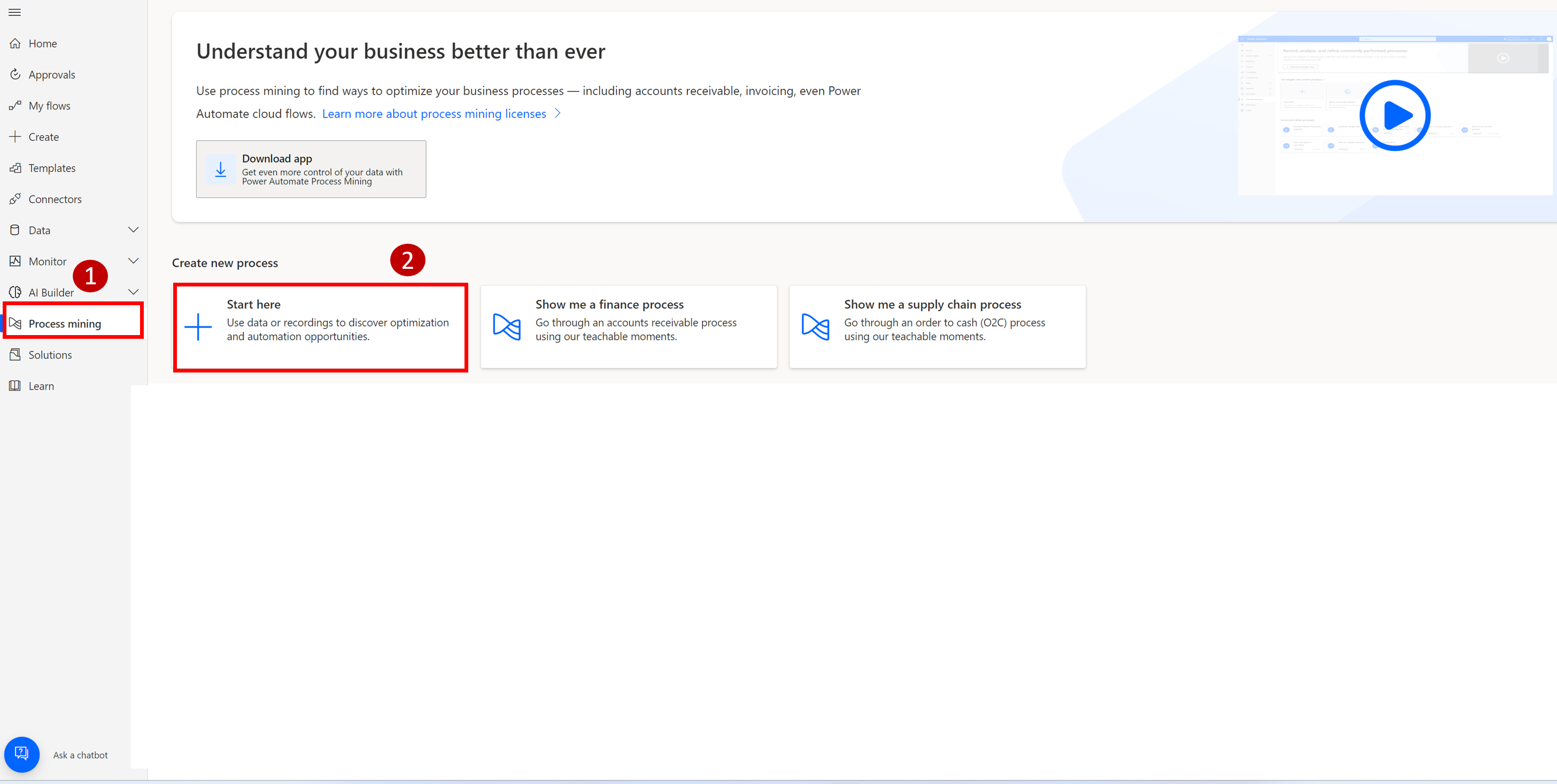
On the process advisor screen, you can create a new process or add recordings to an existing process.
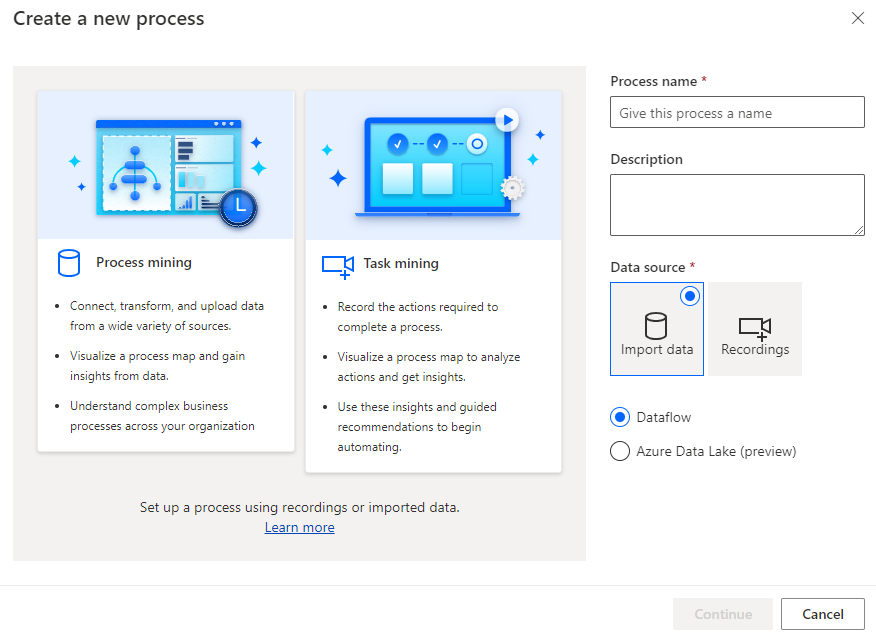
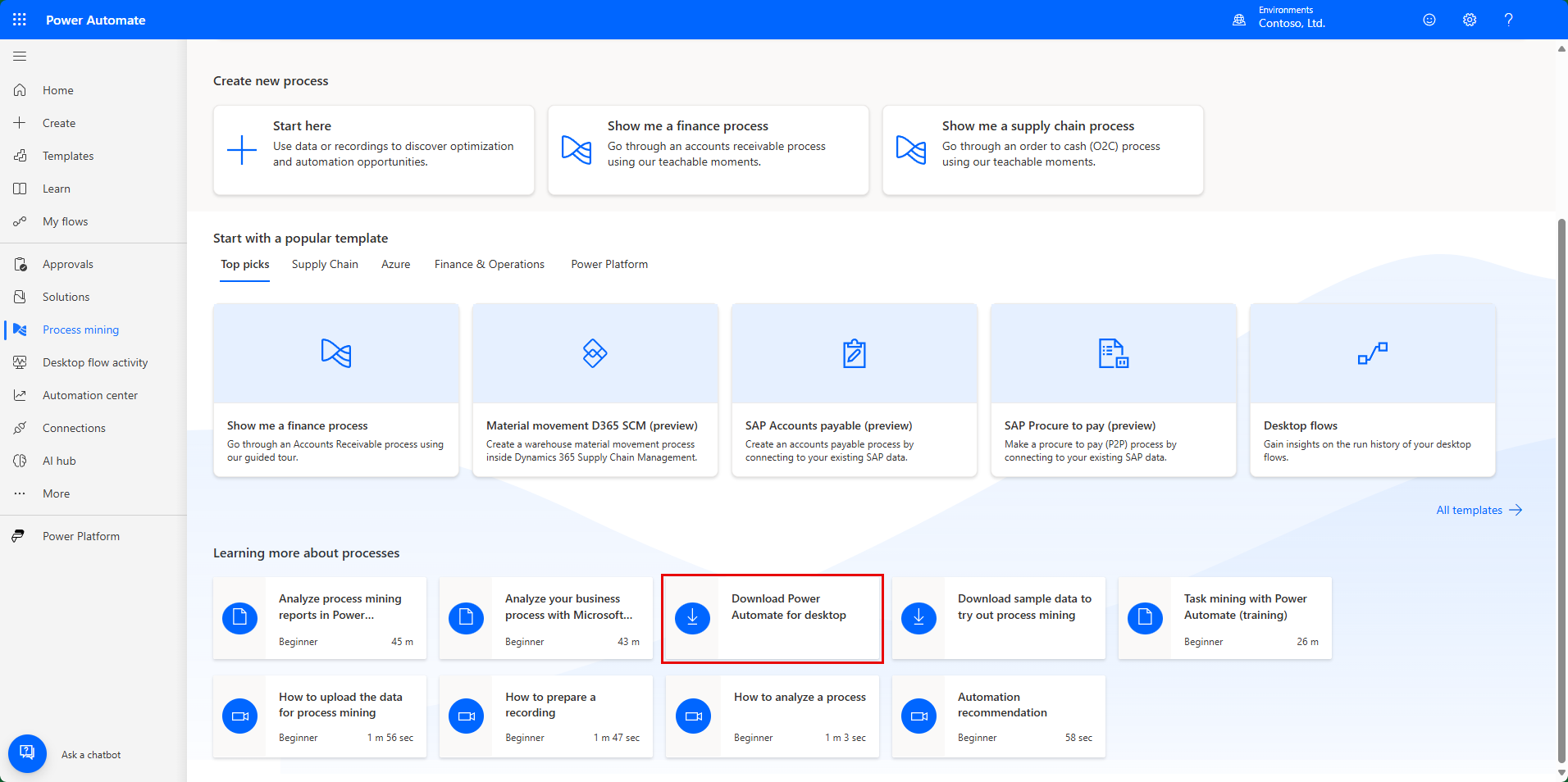
Additionally, you can select a link to download Power Automate for desktop flow and view short instructional videos that describe various tasks in process advisor. Recordings are conducted through Power Automate for desktop flow, so make sure that you've downloaded this program.
Select All processes to view the details of existing processes that you own or co-own. If you don't have any processes, you can begin a new one.
Selecting a process lets you see the details that are involved, such as:
The various recordings
Who created them
At what time
Their status
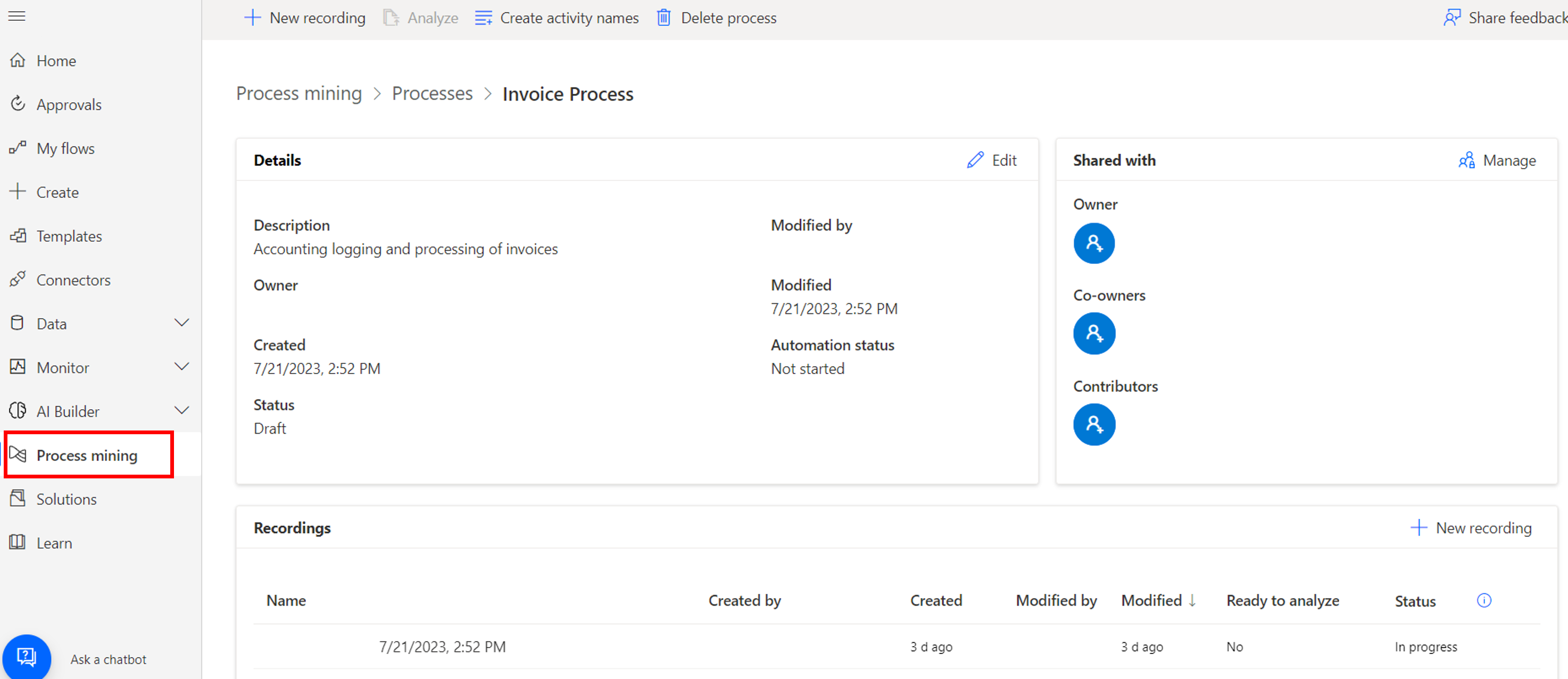
The possible statuses for recordings are as follows:
In progress - Recording is in progress, but it's also possible that the recording hasn't yet started. Because recording happens in the desktop client, the web portal won't know about its status until it has been saved. You can also view this status after the recording has been saved because some processing is required after recording to make it ready to view.
Failed - An error occurred during recording processing. Create a new recording.
Not analyzed - The recording has been processed and is available to view and edit, but it hasn't been marked as ready to analyze.
Ready to analyze - The recording has been marked as ready to analyze and will be considered the next time you analyze the process.
Analyzed - The recording has been analyzed and is part of the analyzed output that can be viewed through the Analytics screen.
Besides the recording information, you can view and manage the users who have access to your process.
Note: Contributors have access to add recordings and manage recordings that they created, while co-owners have access to create recordings and manage the recordings of others, including their own.
Analytics and recommendations will be discussed later in the module; however, the next task is to learn how to add a recording.
A. Only mentioning that co-owners can add recordings is inaccurate. While co-owners do have the permission to add recordings to your process in Process Advisor, contributors also have the same capability. Both roles are essential for gathering insights and identifying areas for automation recommendations.
B. Contributors or co-owners are allowed to add recordings to your process in Process Advisor. This role enables other users to provide their insights and perspectives on the process by capturing their actions, helping to identify differences and bottlenecks in the process.
C. Only stating that contributors can add recordings is incorrect. Both contributors and co-owners have the permission to add recordings to your process in Process Advisor. This collaborative approach allows multiple users to contribute their recordings for a more comprehensive analysis of the process.
D. Indicating that no one can add recordings to your process regardless of their permissions is incorrect. In Process Advisor, contributors and co-owners have the ability to add recordings to your process to gather insights and analyze the process for automation recommendations. Collaboration among users is key to understanding process variations and bottlenecks.
Discussion
Think the marked answer is wrong, or have a better explanation? Share it below — comments appear after review.

