
Microsoft Certified Azure Data Engineer Associate · Free Practice Question Medium
Question 29
Azure Cosmos DB analytical store is a fully isolated column store for enabling large-scale analytics against operational data in your Azure Cosmos DB, without any impact to your transactional workloads.
True or False: You can only enable analytical store at the time of creating a new container.
-
A
False
-
B
True
Reveal correct answer
Correct answer: A
Explanation
You are not limited to enabling the analytical store only at the time of creating a new container in Azure Cosmos DB. The feature can be enabled or disabled for an existing container, allowing you to leverage analytical capabilities on operational data as needed.
Azure Synapse Link for Azure Cosmos DB is a cloud-native hybrid transactional and analytical processing (HTAP) capability that enables near real time analytics over operational data in Azure Cosmos DB.
Azure Synapse Link for existing Azure Cosmos containers
You can now enable analytical store and unlock Synapse Link for your existing Cosmos containers, which will trigger the initial sync of the data from transactional store to analytical store. There is no cost or performance impact on your transactional workloads, and you can do it using the Azure Portal, Azure Cosmos DB SDKs, Azure CLI, or PowerShell.
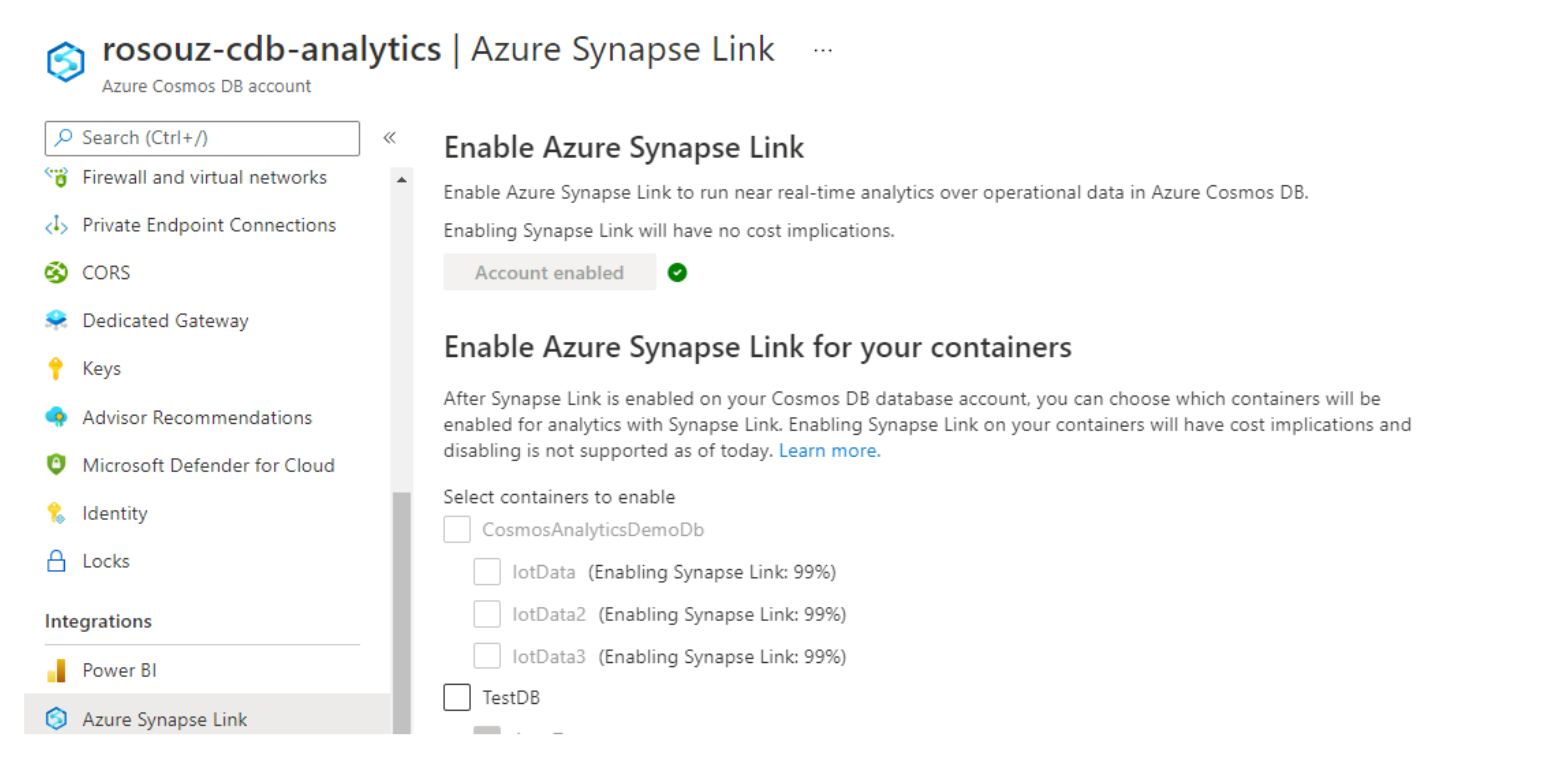
The sync process may last from seconds to days, depending on your data volume. You can check the progress in the Azure Portal, using the new left navigation item for Azure Synapse Link, located in the Integrations section. The image below shows you how to locate the Azure Synapse Link left navigation item and monitor the progress of your initial synchronization.
Please note that:
This new feature is only available for Azure Cosmos DB SQL API. The same capability for collections using our MongoDB API for Azure Cosmos DB is on our roadmap.
If you are using Azure Cosmos DB SDKs, Azure CLI, or PowerShell, analytical store is enabled by simply setting the analytical TTL property to -1, meaning that data is kept in the analytical store indefinitely, or to any positive integer, that is the number of seconds that the data will be kept in analytical store. As an example, if you set analytical TTL to 31536000, your data will be kept in analytical store for 1 year.
You can enable Synapse Link on multiple containers in an account at the same time.
You won’t be able to use Synapse Link on containers while initial sync is in progress between transactional and analytical store.
Once Synapse Link is enabled on your container, you can analyze the data in your container by using Synapse Spark or Synapse serverless SQL pools. You can directly access your Cosmos DB container’s analytical store data in multiple Synapse workspaces. There’s no cost or performance impact on your OLTP workloads when using Synapse Link.
You can also disable analytical store using PowerShell. You cannot re-enable analytical store once disabled.
Click here to learn more on how to configure and use Azure Synapse Link for Azure Cosmos DB, including how to enable analytical store on existing containers.
Integrated Azure Synapse Link Power BI experience
With the integrated Power BI experience in the Azure Cosmos DB portal, you can visualize your Azure Cosmos DB data in near real time in just a few clicks. Synapse Link enables you to build Power BI reports and dashboards with no performance or cost impact to your transactional workloads, and no ETL pipelines. You can either use DirectQuery or import modes. With DirectQuery, Power BI can query live data from your Azure Cosmos DB accounts, without importing or copying the data into Power BI.
To get started:
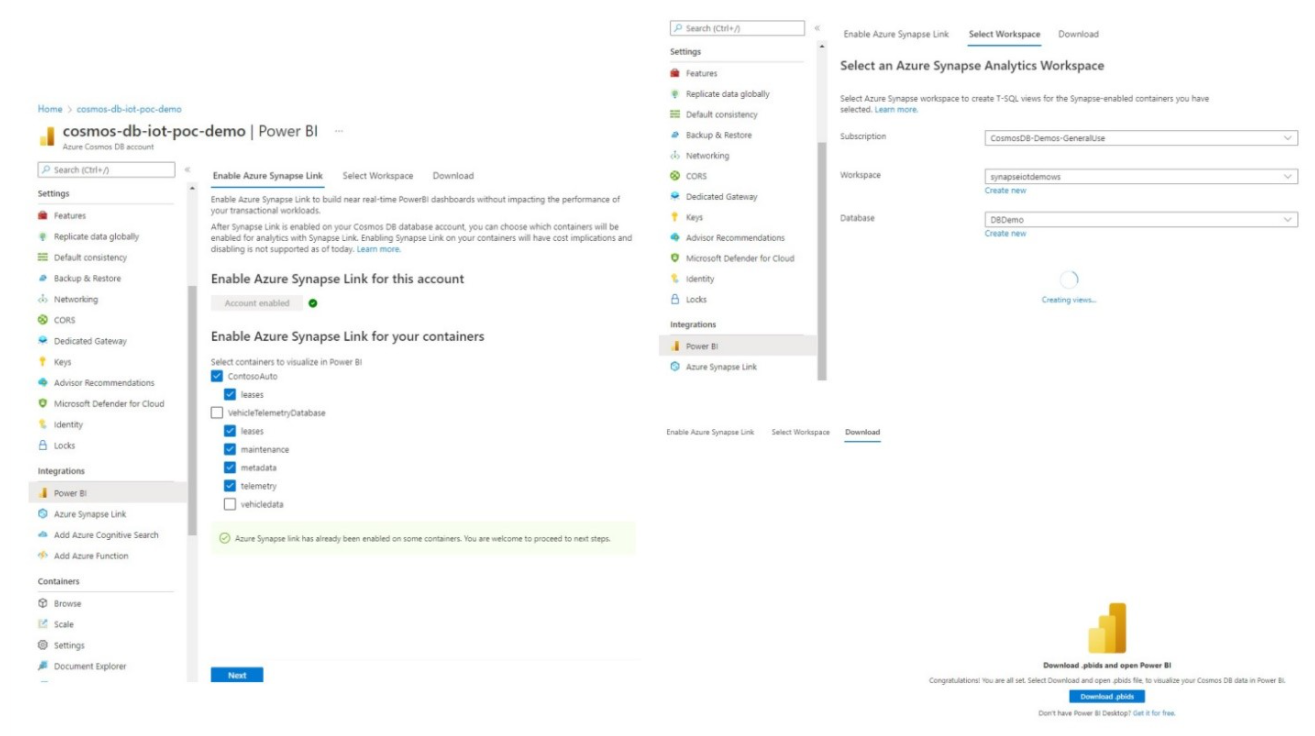
Step 1: Click on “Power BI” under “Integrations” in the Azure Cosmos DB portal. Select containers to start building your BI dashboard. If the containers are not enabled with Synapse Link, you will need to enable this before you can proceed further. It may take some time for the initial sync of transactional store to analytical store.
Step 2: Pick your Synapse workspace and serverless SQL pool database. Using Synapse Link, this step will automatically create T-SQL views for the Cosmos DB containers you’ve selected.
Step 3: You can directly now download .pbix file, which is initialized with your Synapse SQL connection credentials and with all the T-SQL views included as data sources.
Clicking on the .pbix file opens Power BI Desktop. That’s it – with just a few clicks, you can now start creating your BI reports.
Learn more about integrated Power BI experience in Azure Cosmos DB portal here.
Row-oriented transactional store
Operational data in an Azure Cosmos DB container is internally stored in an indexed row-based "transactional store". The row store format and its associated b-tree index are designed to allow fast transactional reads and writes with single-digit millisecond response times, and high-performance operational queries. As your dataset grows large, complex analytical queries can become expensive as they use up more of the provisioned throughput resources. The increased consumption of provisioned throughput in turn impacts the performance of transactional workloads.
Column-oriented analytical store
Azure Cosmos DB analytical store addresses the complexity and latency challenges that occur with the traditional ETL pipelines. Azure Cosmos DB analytical store can automatically sync data from the transactional store into a separate column store. Column store format is suitable for large-scale analytical queries to be performed in an optimized manner, resulting in improving the latency of such queries.

Features of the analytical store
When you create an Azure Cosmos DB container you have the option of enabling analytical store, a new column-store structure is created within the container duplicating the data of the transactional store. This column store structure data is persisted separately from the row-oriented transactional store with the inserts, updates, and deletes performed on the transactional store being transparently copied by means of a fully managed internal autosync process to the analytical store in near real time.
Note:
• You can only enable analytical store at the time of creating a new container.
• Azure Synapse Link is supported for the Azure Cosmos DB SQL (Core) API and for the Azure Cosmos DB API for MongoDB.
Data is typically automatically synchronized between the transactional store and the analytical store within 2 minutes by means of the autosync process. However, in some circumstances -most notably in situations shared throughput database with many containers, the autosync latency could take up to 5 minutes.
Due to the fact that the transactional store and analytical store are persisted and queried separately the workloads associated with these stores are isolated from each other, that is to say queries against the analytical store (or the autosync process itself) does not impact the performance of nor use up resources (throughput or request units) provisioned for the transactional store, and operations performed against the transactional store does not impact autosync latency.
Note:
• The transactions (read & write) and storage costs for the analytical store are charged separately from the transactional store storage and throughput.
The autosync process also takes care of schema updates to the schematized analytical store automatically for you as unique new properties are added over time to items within your container. This allows you to take advantage of the performance advantages provided by schematization without any effort on your part. We will get into more of the details of how analytical store schema is managed and exposed to the Synapse Analytics query capabilities in the next unit.
You can configure the default Time to Live (TTL) property for records stored within the transactional store and analytical store independently of each other. The TTL value of a record defines when it will be automatically deleted from the store. By configuring the default TTL value of both stores, you can manage the lifecycle of data and define how long it will be retained for in each store. You can override the default TTL value (at the item level) for the transactional store however the default TTL value will always apply to data in the analytical and cannot be overwritten at the item level.
Azure Cosmos DB support global distributed accounts replicating your containers transparently to the Azure regions choose. When enabled on a container the analytical store will automatically be configured in all chosen global distribution regions, you cannot selectively choose which regions to deploy an analytical store. It is also recommended that you choose and configure your global distribution regions on the account prior to enabling analytical store on a container.
A.
This statement is false. You are not limited to enabling the analytical store only at the time of creating a new container in Azure Cosmos DB. The feature can be enabled or disabled for an existing container, allowing you to leverage analytical capabilities on operational data as needed.
B. This statement is incorrect. Azure Cosmos DB allows you to enable the analytical store feature for an existing container after it has been created. This feature can be enabled or disabled at any time, providing flexibility in managing and utilizing the analytical capabilities of Cosmos DB.
Discussion
Think the marked answer is wrong, or have a better explanation? Share it below — comments appear after review.

